Matplotlib Line Plots and Canadian Immigration Exploration
Introduction
My goal is to become well-rounded with Python visualization libraries and concepts, so I can choose the best technique and tool for any data problem or audience. This notebook is a hands-on exploration of those tools and ideas.
Why Matplotlib?
I'm interested in how visualizations can reveal patterns in data. Matplotlib is a powerful tool for creating a wide range of plots, and I want to get hands-on experience with its capabilities.
Table of Contents
- Exploring Data with pandas 1.1 The Dataset: Immigration to Canada from 1980 to 2013 1.2 pandas Basics 1.3 pandas Intermediate: Indexing and Selection
- Visualizing Data using Matplotlib 2.1 Matplotlib: Standard Python Visualization Library
- Line Plots
Data and Setup
For these experiments, I use sample datasets and focus on learning how to use Matplotlib's features. The emphasis is on exploration and creativity rather than following a set of instructions.
Reflections
This section is for my thoughts on using Matplotlib, including what I found useful and what I want to explore further.
Dataset Source: International migration flows to and from selected countries - The 2015 revision.
The dataset contains annual data on the flows of international immigrants as recorded by the countries of destination. The data presents both inflows and outflows according to the place of birth, citizenship or place of previous / next residence both for foreigners and nationals. The current version presents data pertaining to 45 countries.
In this lab, we will focus on the Canadian immigration data.
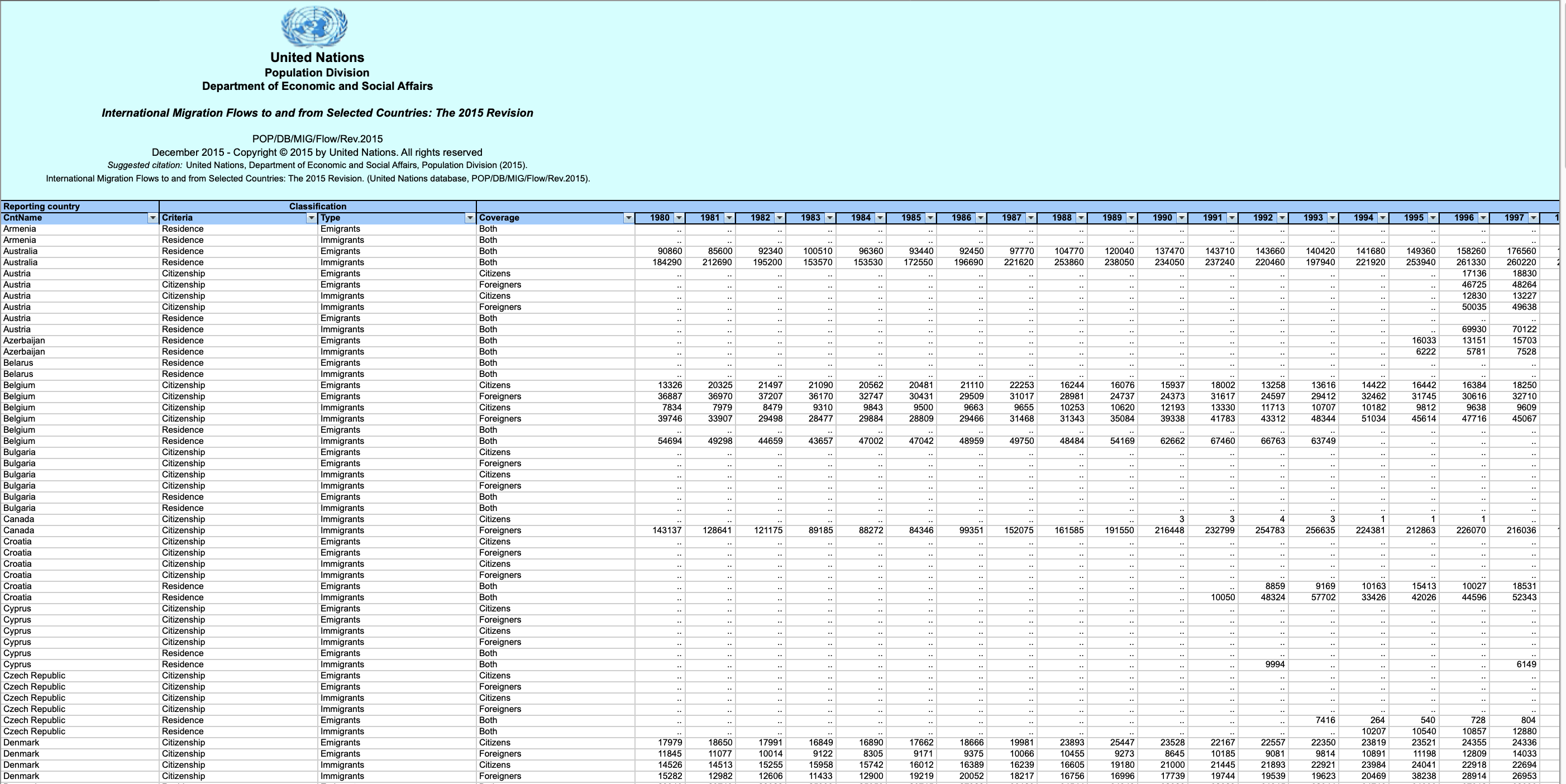
The Canada Immigration dataset can be fetched from here.
Next Steps
Based on what I've learned so far, I plan to try more advanced Matplotlib features and apply them to my own datasets.
Summary
This notebook captures my personal journey with Matplotlib, highlighting my experiments, discoveries, and areas for future exploration.
The first thing we'll do is import two key data analysis modules: pandas and Numpy.
Final Thoughts
All the visualizations and notes here are part of my own learning process with Matplotlib.
import numpy as np  # useful for many scientific computing in Python
import pandas as pd # primary data structure library
Now we are ready to read in our data.
df_can = pd.read_excel('https://cf-courses-data.s3.us.cloud-object-storage.appdomain.cloud/IBMDeveloperSkillsNetwork-DV0101EN-SkillsNetwork/Data%20Files/Canada.xlsx',
                        sheet_name='Canada by Citizenship',
                       skiprows=range(20),
                       skipfooter=2)

print ('Data read into a pandas dataframe!')
Data read into a pandas dataframe!
Let's view the top 5 rows of the dataset using the head() function.
df_can.head()
# tip: You can specify the number of rows you'd like to see as follows: df_can.head(10)
| Type | Coverage | OdName | AREA | AreaName | REG | RegName | DEV | DevName | 1980 | ... | 2004 | 2005 | 2006 | 2007 | 2008 | 2009 | 2010 | 2011 | 2012 | 2013 | |
|---|---|---|---|---|---|---|---|---|---|---|---|---|---|---|---|---|---|---|---|---|---|
| 0 | Immigrants | Foreigners | Afghanistan | 935 | Asia | 5501 | Southern Asia | 902 | Developing regions | 16 | ... | 2978 | 3436 | 3009 | 2652 | 2111 | 1746 | 1758 | 2203 | 2635 | 2004 |
| 1 | Immigrants | Foreigners | Albania | 908 | Europe | 925 | Southern Europe | 901 | Developed regions | 1 | ... | 1450 | 1223 | 856 | 702 | 560 | 716 | 561 | 539 | 620 | 603 |
| 2 | Immigrants | Foreigners | Algeria | 903 | Africa | 912 | Northern Africa | 902 | Developing regions | 80 | ... | 3616 | 3626 | 4807 | 3623 | 4005 | 5393 | 4752 | 4325 | 3774 | 4331 |
| 3 | Immigrants | Foreigners | American Samoa | 909 | Oceania | 957 | Polynesia | 902 | Developing regions | 0 | ... | 0 | 0 | 1 | 0 | 0 | 0 | 0 | 0 | 0 | 0 |
| 4 | Immigrants | Foreigners | Andorra | 908 | Europe | 925 | Southern Europe | 901 | Developed regions | 0 | ... | 0 | 0 | 1 | 1 | 0 | 0 | 0 | 0 | 1 | 1 |
5 rows × 43 columns
We can also veiw the bottom 5 rows of the dataset using the tail() function.
df_can.tail()
| Type | Coverage | OdName | AREA | AreaName | REG | RegName | DEV | DevName | 1980 | ... | 2004 | 2005 | 2006 | 2007 | 2008 | 2009 | 2010 | 2011 | 2012 | 2013 | |
|---|---|---|---|---|---|---|---|---|---|---|---|---|---|---|---|---|---|---|---|---|---|
| 190 | Immigrants | Foreigners | Viet Nam | 935 | Asia | 920 | South-Eastern Asia | 902 | Developing regions | 1191 | ... | 1816 | 1852 | 3153 | 2574 | 1784 | 2171 | 1942 | 1723 | 1731 | 2112 |
| 191 | Immigrants | Foreigners | Western Sahara | 903 | Africa | 912 | Northern Africa | 902 | Developing regions | 0 | ... | 0 | 0 | 1 | 0 | 0 | 0 | 0 | 0 | 0 | 0 |
| 192 | Immigrants | Foreigners | Yemen | 935 | Asia | 922 | Western Asia | 902 | Developing regions | 1 | ... | 124 | 161 | 140 | 122 | 133 | 128 | 211 | 160 | 174 | 217 |
| 193 | Immigrants | Foreigners | Zambia | 903 | Africa | 910 | Eastern Africa | 902 | Developing regions | 11 | ... | 56 | 91 | 77 | 71 | 64 | 60 | 102 | 69 | 46 | 59 |
| 194 | Immigrants | Foreigners | Zimbabwe | 903 | Africa | 910 | Eastern Africa | 902 | Developing regions | 72 | ... | 1450 | 615 | 454 | 663 | 611 | 508 | 494 | 434 | 437 | 407 |
5 rows × 43 columns
When analyzing a dataset, it's always a good idea to start by getting basic information about your dataframe. We can do this by using the info() method.
This method can be used to get a short summary of the dataframe.
df_can.info(verbose=False)
<class 'pandas.core.frame.DataFrame'>
RangeIndex: 195 entries, 0 to 194
Columns: 43 entries, Type to 2013
dtypes: int64(37), object(6)
memory usage: 65.6+ KB
To get the list of column headers we can call upon the dataframe's .columns parameter.
df_can.columns.values
array(['Type', 'Coverage', 'OdName', 'AREA', 'AreaName', 'REG', 'RegName',
       'DEV', 'DevName', 1980, 1981, 1982, 1983, 1984, 1985, 1986, 1987,
       1988, 1989, 1990, 1991, 1992, 1993, 1994, 1995, 1996, 1997, 1998,
       1999, 2000, 2001, 2002, 2003, 2004, 2005, 2006, 2007, 2008, 2009,
       2010, 2011, 2012, 2013], dtype=object)
Similarly, to get the list of indicies we use the .index parameter.
df_can.index.values
array([  0,   1,   2,   3,   4,   5,   6,   7,   8,   9,  10,  11,  12,
        13,  14,  15,  16,  17,  18,  19,  20,  21,  22,  23,  24,  25,
        26,  27,  28,  29,  30,  31,  32,  33,  34,  35,  36,  37,  38,
        39,  40,  41,  42,  43,  44,  45,  46,  47,  48,  49,  50,  51,
        52,  53,  54,  55,  56,  57,  58,  59,  60,  61,  62,  63,  64,
        65,  66,  67,  68,  69,  70,  71,  72,  73,  74,  75,  76,  77,
        78,  79,  80,  81,  82,  83,  84,  85,  86,  87,  88,  89,  90,
        91,  92,  93,  94,  95,  96,  97,  98,  99, 100, 101, 102, 103,
       104, 105, 106, 107, 108, 109, 110, 111, 112, 113, 114, 115, 116,
       117, 118, 119, 120, 121, 122, 123, 124, 125, 126, 127, 128, 129,
       130, 131, 132, 133, 134, 135, 136, 137, 138, 139, 140, 141, 142,
       143, 144, 145, 146, 147, 148, 149, 150, 151, 152, 153, 154, 155,
       156, 157, 158, 159, 160, 161, 162, 163, 164, 165, 166, 167, 168,
       169, 170, 171, 172, 173, 174, 175, 176, 177, 178, 179, 180, 181,
       182, 183, 184, 185, 186, 187, 188, 189, 190, 191, 192, 193, 194],
      dtype=int64)
Note: The default type of index and columns is NOT list.
print(type(df_can.columns))
print(type(df_can.index))
<class 'pandas.core.indexes.base.Index'>
<class 'pandas.core.indexes.range.RangeIndex'>
To get the index and columns as lists, we can use the tolist() method.
df_can.columns.tolist()
df_can.index.tolist()

print (type(df_can.columns.tolist()))
print (type(df_can.index.tolist()))
<class 'list'>
<class 'list'>
To view the dimensions of the dataframe, we use the .shape parameter.
# size of dataframe (rows, columns)
df_can.shape
(195, 43)
Note: The main types stored in pandas objects are float, int, bool, datetime64[ns] and datetime64[ns, tz] (in >= 0.17.0), timedelta[ns], category (in >= 0.15.0), and object (string). In addition these dtypes have item sizes, e.g. int64 and int32.
Let's clean the data set to remove a few unnecessary columns. We can use pandas drop() method as follows:
# in pandas axis=0 represents rows (default) and axis=1 represents columns.
df_can.drop(['AREA','REG','DEV','Type','Coverage'], axis=1, inplace=True)
df_can.head(2)
| OdName | AreaName | RegName | DevName | 1980 | 1981 | 1982 | 1983 | 1984 | 1985 | ... | 2004 | 2005 | 2006 | 2007 | 2008 | 2009 | 2010 | 2011 | 2012 | 2013 | |
|---|---|---|---|---|---|---|---|---|---|---|---|---|---|---|---|---|---|---|---|---|---|
| 0 | Afghanistan | Asia | Southern Asia | Developing regions | 16 | 39 | 39 | 47 | 71 | 340 | ... | 2978 | 3436 | 3009 | 2652 | 2111 | 1746 | 1758 | 2203 | 2635 | 2004 |
| 1 | Albania | Europe | Southern Europe | Developed regions | 1 | 0 | 0 | 0 | 0 | 0 | ... | 1450 | 1223 | 856 | 702 | 560 | 716 | 561 | 539 | 620 | 603 |
2 rows × 38 columns
Let's rename the columns so that they make sense. We can use rename() method by passing in a dictionary of old and new names as follows:
df_can.rename(columns={'OdName':'Country', 'AreaName':'Continent', 'RegName':'Region'}, inplace=True)
df_can.columns
Index([  'Country', 'Continent',    'Region',   'DevName',        1980,
              1981,        1982,        1983,        1984,        1985,
              1986,        1987,        1988,        1989,        1990,
              1991,        1992,        1993,        1994,        1995,
              1996,        1997,        1998,        1999,        2000,
              2001,        2002,        2003,        2004,        2005,
              2006,        2007,        2008,        2009,        2010,
              2011,        2012,        2013],
      dtype='object')
We will also add a 'Total' column that sums up the total immigrants by country over the entire period 1980 - 2013, as follows:
df_can['Total'] = df_can.sum(axis=1)
C:\Users\chysa\AppData\Local\Temp\ipykernel_19980\552165185.py:1: FutureWarning: Dropping of nuisance columns in DataFrame reductions (with 'numeric_only=None') is deprecated; in a future version this will raise TypeError.  Select only valid columns before calling the reduction.
  df_can['Total'] = df_can.sum(axis=1)
We can check to see how many null objects we have in the dataset as follows:
df_can.isnull().sum()
Country      0
Continent    0
Region       0
DevName      0
1980         0
1981         0
1982         0
1983         0
1984         0
1985         0
1986         0
1987         0
1988         0
1989         0
1990         0
1991         0
1992         0
1993         0
1994         0
1995         0
1996         0
1997         0
1998         0
1999         0
2000         0
2001         0
2002         0
2003         0
2004         0
2005         0
2006         0
2007         0
2008         0
2009         0
2010         0
2011         0
2012         0
2013         0
Total        0
dtype: int64
Finally, let's view a quick summary of each column in our dataframe using the describe() method.
df_can.describe()
| 1980 | 1981 | 1982 | 1983 | 1984 | 1985 | 1986 | 1987 | 1988 | 1989 | ... | 2005 | 2006 | 2007 | 2008 | 2009 | 2010 | 2011 | 2012 | 2013 | Total | |
|---|---|---|---|---|---|---|---|---|---|---|---|---|---|---|---|---|---|---|---|---|---|
| count | 195.000000 | 195.000000 | 195.000000 | 195.000000 | 195.000000 | 195.000000 | 195.000000 | 195.000000 | 195.000000 | 195.000000 | ... | 195.000000 | 195.000000 | 195.000000 | 195.000000 | 195.000000 | 195.000000 | 195.000000 | 195.000000 | 195.000000 | 195.000000 |
| mean | 508.394872 | 566.989744 | 534.723077 | 387.435897 | 376.497436 | 358.861538 | 441.271795 | 691.133333 | 714.389744 | 843.241026 | ... | 1320.292308 | 1266.958974 | 1191.820513 | 1246.394872 | 1275.733333 | 1420.287179 | 1262.533333 | 1313.958974 | 1320.702564 | 32867.451282 |
| std | 1949.588546 | 2152.643752 | 1866.997511 | 1204.333597 | 1198.246371 | 1079.309600 | 1225.576630 | 2109.205607 | 2443.606788 | 2555.048874 | ... | 4425.957828 | 3926.717747 | 3443.542409 | 3694.573544 | 3829.630424 | 4462.946328 | 4030.084313 | 4247.555161 | 4237.951988 | 91785.498686 |
| min | 0.000000 | 0.000000 | 0.000000 | 0.000000 | 0.000000 | 0.000000 | 0.000000 | 0.000000 | 0.000000 | 0.000000 | ... | 0.000000 | 0.000000 | 0.000000 | 0.000000 | 0.000000 | 0.000000 | 0.000000 | 0.000000 | 0.000000 | 1.000000 |
| 25% | 0.000000 | 0.000000 | 0.000000 | 0.000000 | 0.000000 | 0.000000 | 0.500000 | 0.500000 | 1.000000 | 1.000000 | ... | 28.500000 | 25.000000 | 31.000000 | 31.000000 | 36.000000 | 40.500000 | 37.500000 | 42.500000 | 45.000000 | 952.000000 |
| 50% | 13.000000 | 10.000000 | 11.000000 | 12.000000 | 13.000000 | 17.000000 | 18.000000 | 26.000000 | 34.000000 | 44.000000 | ... | 210.000000 | 218.000000 | 198.000000 | 205.000000 | 214.000000 | 211.000000 | 179.000000 | 233.000000 | 213.000000 | 5018.000000 |
| 75% | 251.500000 | 295.500000 | 275.000000 | 173.000000 | 181.000000 | 197.000000 | 254.000000 | 434.000000 | 409.000000 | 508.500000 | ... | 832.000000 | 842.000000 | 899.000000 | 934.500000 | 888.000000 | 932.000000 | 772.000000 | 783.000000 | 796.000000 | 22239.500000 |
| max | 22045.000000 | 24796.000000 | 20620.000000 | 10015.000000 | 10170.000000 | 9564.000000 | 9470.000000 | 21337.000000 | 27359.000000 | 23795.000000 | ... | 42584.000000 | 33848.000000 | 28742.000000 | 30037.000000 | 29622.000000 | 38617.000000 | 36765.000000 | 34315.000000 | 34129.000000 | 691904.000000 |
8 rows × 35 columns
pandas Intermediate: Indexing and Selection (slicing)
Select Column
There are two ways to filter on a column name:
Method 1: Quick and easy, but only works if the column name does NOT have spaces or special characters.
    df.column_name
        (returns series)
Method 2: More robust, and can filter on multiple columns.
    df['column']
        (returns series)
    df[['column 1', 'column 2']]
        (returns dataframe)
Example: Let's try filtering on the list of countries ('Country').
df_can.Country # returns a series
0         Afghanistan
1             Albania
2             Algeria
3      American Samoa
4             Andorra
            ...
190          Viet Nam
191    Western Sahara
192             Yemen
193            Zambia
194          Zimbabwe
Name: Country, Length: 195, dtype: object
Let's try filtering on the list of countries ('OdName') and the data for years: 1980 - 1985.
df_can[['Country', 1980, 1981, 1982, 1983, 1984, 1985]] # returns a dataframe
# notice that 'Country' is string, and the years are integers.
# for the sake of consistency, we will convert all column names to string later on.
| Country | 1980 | 1981 | 1982 | 1983 | 1984 | 1985 | |
|---|---|---|---|---|---|---|---|
| 0 | Afghanistan | 16 | 39 | 39 | 47 | 71 | 340 |
| 1 | Albania | 1 | 0 | 0 | 0 | 0 | 0 |
| 2 | Algeria | 80 | 67 | 71 | 69 | 63 | 44 |
| 3 | American Samoa | 0 | 1 | 0 | 0 | 0 | 0 |
| 4 | Andorra | 0 | 0 | 0 | 0 | 0 | 0 |
| ... | ... | ... | ... | ... | ... | ... | ... |
| 190 | Viet Nam | 1191 | 1829 | 2162 | 3404 | 7583 | 5907 |
| 191 | Western Sahara | 0 | 0 | 0 | 0 | 0 | 0 |
| 192 | Yemen | 1 | 2 | 1 | 6 | 0 | 18 |
| 193 | Zambia | 11 | 17 | 11 | 7 | 16 | 9 |
| 194 | Zimbabwe | 72 | 114 | 102 | 44 | 32 | 29 |
195 rows × 7 columns
Select Row
There are main 3 ways to select rows:
    df.loc[label]
        #filters by the labels of the index/column
    df.iloc[index]
        #filters by the positions of the index/column
Before we proceed, notice that the defaul index of the dataset is a numeric range from 0 to 194. This makes it very difficult to do a query by a specific country. For example to search for data on Japan, we need to know the corressponding index value.
This can be fixed very easily by setting the 'Country' column as the index using set_index() method.
df_can.set_index('Country', inplace=True)
# tip: The opposite of set is reset. So to reset the index, we can use df_can.reset_index()
df_can.head(3)
| Continent | Region | DevName | 1980 | 1981 | 1982 | 1983 | 1984 | 1985 | 1986 | ... | 2005 | 2006 | 2007 | 2008 | 2009 | 2010 | 2011 | 2012 | 2013 | Total | |
|---|---|---|---|---|---|---|---|---|---|---|---|---|---|---|---|---|---|---|---|---|---|
| Country | |||||||||||||||||||||
| Afghanistan | Asia | Southern Asia | Developing regions | 16 | 39 | 39 | 47 | 71 | 340 | 496 | ... | 3436 | 3009 | 2652 | 2111 | 1746 | 1758 | 2203 | 2635 | 2004 | 58639 |
| Albania | Europe | Southern Europe | Developed regions | 1 | 0 | 0 | 0 | 0 | 0 | 1 | ... | 1223 | 856 | 702 | 560 | 716 | 561 | 539 | 620 | 603 | 15699 |
| Algeria | Africa | Northern Africa | Developing regions | 80 | 67 | 71 | 69 | 63 | 44 | 69 | ... | 3626 | 4807 | 3623 | 4005 | 5393 | 4752 | 4325 | 3774 | 4331 | 69439 |
3 rows × 38 columns
# optional: to remove the name of the index
df_can.index.name = None
Example: Let's view the number of immigrants from Japan (row 87) for the following scenarios:
1. The full row data (all columns)
2. For year 2013
3. For years 1980 to 1985
# 1. the full row data (all columns)
print(df_can.loc['Japan'])

# alternate methods
print(df_can.iloc[87])
print(df_can[df_can.index == 'Japan'].T.squeeze())
Continent                 Asia
Region            Eastern Asia
DevName      Developed regions
1980                       701
1981                       756
1982                       598
1983                       309
1984                       246
1985                       198
1986                       248
1987                       422
1988                       324
1989                       494
1990                       379
1991                       506
1992                       605
1993                       907
1994                       956
1995                       826
1996                       994
1997                       924
1998                       897
1999                      1083
2000                      1010
2001                      1092
2002                       806
2003                       817
2004                       973
2005                      1067
2006                      1212
2007                      1250
2008                      1284
2009                      1194
2010                      1168
2011                      1265
2012                      1214
2013                       982
Total                    27707
Name: Japan, dtype: object
Continent                 Asia
Region            Eastern Asia
DevName      Developed regions
1980                       701
1981                       756
1982                       598
1983                       309
1984                       246
1985                       198
1986                       248
1987                       422
1988                       324
1989                       494
1990                       379
1991                       506
1992                       605
1993                       907
1994                       956
1995                       826
1996                       994
1997                       924
1998                       897
1999                      1083
2000                      1010
2001                      1092
2002                       806
2003                       817
2004                       973
2005                      1067
2006                      1212
2007                      1250
2008                      1284
2009                      1194
2010                      1168
2011                      1265
2012                      1214
2013                       982
Total                    27707
Name: Japan, dtype: object
Continent                 Asia
Region            Eastern Asia
DevName      Developed regions
1980                       701
1981                       756
1982                       598
1983                       309
1984                       246
1985                       198
1986                       248
1987                       422
1988                       324
1989                       494
1990                       379
1991                       506
1992                       605
1993                       907
1994                       956
1995                       826
1996                       994
1997                       924
1998                       897
1999                      1083
2000                      1010
2001                      1092
2002                       806
2003                       817
2004                       973
2005                      1067
2006                      1212
2007                      1250
2008                      1284
2009                      1194
2010                      1168
2011                      1265
2012                      1214
2013                       982
Total                    27707
Name: Japan, dtype: object
# 2. for year 2013
print(df_can.loc['Japan', 2013])

# alternate method
print(df_can.iloc[87, 36]) # year 2013 is the last column, with a positional index of 36
982
982
# 3. for years 1980 to 1985
print(df_can.loc['Japan', [1980, 1981, 1982, 1983, 1984, 1984]])
print(df_can.iloc[87, [3, 4, 5, 6, 7, 8]])
1980    701
1981    756
1982    598
1983    309
1984    246
1984    246
Name: Japan, dtype: object
1980    701
1981    756
1982    598
1983    309
1984    246
1985    198
Name: Japan, dtype: object
Column names that are integers (such as the years) might introduce some confusion. For example, when we are referencing the year 2013, one might confuse that when the 2013th positional index.
To avoid this ambuigity, let's convert the column names into strings: '1980' to '2013'.
df_can.columns = list(map(str, df_can.columns))
# [print (type(x)) for x in df_can.columns.values] #<-- uncomment to check type of column headers
Since we converted the years to string, let's declare a variable that will allow us to easily call upon the full range of years:
# useful for plotting later on
years = list(map(str, range(1980, 2014)))
years
['1980',
 '1981',
 '1982',
 '1983',
 '1984',
 '1985',
 '1986',
 '1987',
 '1988',
 '1989',
 '1990',
 '1991',
 '1992',
 '1993',
 '1994',
 '1995',
 '1996',
 '1997',
 '1998',
 '1999',
 '2000',
 '2001',
 '2002',
 '2003',
 '2004',
 '2005',
 '2006',
 '2007',
 '2008',
 '2009',
 '2010',
 '2011',
 '2012',
 '2013']
Filtering based on a criteria
To filter the dataframe based on a condition, we simply pass the condition as a boolean vector.
For example, Let's filter the dataframe to show the data on Asian countries (AreaName = Asia).
# 1. create the condition boolean series
condition = df_can['Continent'] == 'Asia'
print(condition)
Afghanistan        True
Albania           False
Algeria           False
American Samoa    False
Andorra           False
                  ...
Viet Nam           True
Western Sahara    False
Yemen              True
Zambia            False
Zimbabwe          False
Name: Continent, Length: 195, dtype: bool
# 2. pass this condition into the dataFrame
df_can[condition]
| Continent | Region | DevName | 1980 | 1981 | 1982 | 1983 | 1984 | 1985 | 1986 | ... | 2005 | 2006 | 2007 | 2008 | 2009 | 2010 | 2011 | 2012 | 2013 | Total | |
|---|---|---|---|---|---|---|---|---|---|---|---|---|---|---|---|---|---|---|---|---|---|
| Afghanistan | Asia | Southern Asia | Developing regions | 16 | 39 | 39 | 47 | 71 | 340 | 496 | ... | 3436 | 3009 | 2652 | 2111 | 1746 | 1758 | 2203 | 2635 | 2004 | 58639 |
| Armenia | Asia | Western Asia | Developing regions | 0 | 0 | 0 | 0 | 0 | 0 | 0 | ... | 224 | 218 | 198 | 205 | 267 | 252 | 236 | 258 | 207 | 3310 |
| Azerbaijan | Asia | Western Asia | Developing regions | 0 | 0 | 0 | 0 | 0 | 0 | 0 | ... | 359 | 236 | 203 | 125 | 165 | 209 | 138 | 161 | 57 | 2649 |
| Bahrain | Asia | Western Asia | Developing regions | 0 | 2 | 1 | 1 | 1 | 3 | 0 | ... | 12 | 12 | 22 | 9 | 35 | 28 | 21 | 39 | 32 | 475 |
| Bangladesh | Asia | Southern Asia | Developing regions | 83 | 84 | 86 | 81 | 98 | 92 | 486 | ... | 4171 | 4014 | 2897 | 2939 | 2104 | 4721 | 2694 | 2640 | 3789 | 65568 |
| Bhutan | Asia | Southern Asia | Developing regions | 0 | 0 | 0 | 0 | 1 | 0 | 0 | ... | 5 | 10 | 7 | 36 | 865 | 1464 | 1879 | 1075 | 487 | 5876 |
| Brunei Darussalam | Asia | South-Eastern Asia | Developing regions | 79 | 6 | 8 | 2 | 2 | 4 | 12 | ... | 4 | 5 | 11 | 10 | 5 | 12 | 6 | 3 | 6 | 600 |
| Cambodia | Asia | South-Eastern Asia | Developing regions | 12 | 19 | 26 | 33 | 10 | 7 | 8 | ... | 370 | 529 | 460 | 354 | 203 | 200 | 196 | 233 | 288 | 6538 |
| China | Asia | Eastern Asia | Developing regions | 5123 | 6682 | 3308 | 1863 | 1527 | 1816 | 1960 | ... | 42584 | 33518 | 27642 | 30037 | 29622 | 30391 | 28502 | 33024 | 34129 | 659962 |
| China, Hong Kong Special Administrative Region | Asia | Eastern Asia | Developing regions | 0 | 0 | 0 | 0 | 0 | 0 | 0 | ... | 729 | 712 | 674 | 897 | 657 | 623 | 591 | 728 | 774 | 9327 |
| China, Macao Special Administrative Region | Asia | Eastern Asia | Developing regions | 0 | 0 | 0 | 0 | 0 | 0 | 0 | ... | 21 | 32 | 16 | 12 | 21 | 21 | 13 | 33 | 29 | 284 |
| Cyprus | Asia | Western Asia | Developing regions | 132 | 128 | 84 | 46 | 46 | 43 | 48 | ... | 7 | 9 | 4 | 7 | 6 | 18 | 6 | 12 | 16 | 1126 |
| Democratic People's Republic of Korea | Asia | Eastern Asia | Developing regions | 1 | 1 | 3 | 1 | 4 | 3 | 0 | ... | 14 | 10 | 7 | 19 | 11 | 45 | 97 | 66 | 17 | 388 |
| Georgia | Asia | Western Asia | Developing regions | 0 | 0 | 0 | 0 | 0 | 0 | 0 | ... | 114 | 125 | 132 | 112 | 128 | 126 | 139 | 147 | 125 | 2068 |
| India | Asia | Southern Asia | Developing regions | 8880 | 8670 | 8147 | 7338 | 5704 | 4211 | 7150 | ... | 36210 | 33848 | 28742 | 28261 | 29456 | 34235 | 27509 | 30933 | 33087 | 691904 |
| Indonesia | Asia | South-Eastern Asia | Developing regions | 186 | 178 | 252 | 115 | 123 | 100 | 127 | ... | 632 | 613 | 657 | 661 | 504 | 712 | 390 | 395 | 387 | 13150 |
| Iran (Islamic Republic of) | Asia | Southern Asia | Developing regions | 1172 | 1429 | 1822 | 1592 | 1977 | 1648 | 1794 | ... | 5837 | 7480 | 6974 | 6475 | 6580 | 7477 | 7479 | 7534 | 11291 | 175923 |
| Iraq | Asia | Western Asia | Developing regions | 262 | 245 | 260 | 380 | 428 | 231 | 265 | ... | 2226 | 1788 | 2406 | 3543 | 5450 | 5941 | 6196 | 4041 | 4918 | 69789 |
| Israel | Asia | Western Asia | Developing regions | 1403 | 1711 | 1334 | 541 | 446 | 680 | 1212 | ... | 2446 | 2625 | 2401 | 2562 | 2316 | 2755 | 1970 | 2134 | 1945 | 66508 |
| Japan | Asia | Eastern Asia | Developed regions | 701 | 756 | 598 | 309 | 246 | 198 | 248 | ... | 1067 | 1212 | 1250 | 1284 | 1194 | 1168 | 1265 | 1214 | 982 | 27707 |
| Jordan | Asia | Western Asia | Developing regions | 177 | 160 | 155 | 113 | 102 | 179 | 181 | ... | 1940 | 1827 | 1421 | 1581 | 1235 | 1831 | 1635 | 1206 | 1255 | 35406 |
| Kazakhstan | Asia | Central Asia | Developing regions | 0 | 0 | 0 | 0 | 0 | 0 | 0 | ... | 506 | 408 | 436 | 394 | 431 | 377 | 381 | 462 | 348 | 8490 |
| Kuwait | Asia | Western Asia | Developing regions | 1 | 0 | 8 | 2 | 1 | 4 | 4 | ... | 66 | 35 | 62 | 53 | 68 | 67 | 58 | 73 | 48 | 2025 |
| Kyrgyzstan | Asia | Central Asia | Developing regions | 0 | 0 | 0 | 0 | 0 | 0 | 0 | ... | 173 | 161 | 135 | 168 | 173 | 157 | 159 | 278 | 123 | 2353 |
| Lao People's Democratic Republic | Asia | South-Eastern Asia | Developing regions | 11 | 6 | 16 | 16 | 7 | 17 | 21 | ... | 42 | 74 | 53 | 32 | 39 | 54 | 22 | 25 | 15 | 1089 |
| Lebanon | Asia | Western Asia | Developing regions | 1409 | 1119 | 1159 | 789 | 1253 | 1683 | 2576 | ... | 3709 | 3802 | 3467 | 3566 | 3077 | 3432 | 3072 | 1614 | 2172 | 115359 |
| Malaysia | Asia | South-Eastern Asia | Developing regions | 786 | 816 | 813 | 448 | 384 | 374 | 425 | ... | 593 | 580 | 600 | 658 | 640 | 802 | 409 | 358 | 204 | 24417 |
| Maldives | Asia | Southern Asia | Developing regions | 0 | 0 | 0 | 1 | 0 | 0 | 0 | ... | 0 | 0 | 2 | 1 | 7 | 4 | 3 | 1 | 1 | 30 |
| Mongolia | Asia | Eastern Asia | Developing regions | 0 | 0 | 0 | 0 | 0 | 0 | 0 | ... | 59 | 64 | 82 | 59 | 118 | 169 | 103 | 68 | 99 | 952 |
| Myanmar | Asia | South-Eastern Asia | Developing regions | 80 | 62 | 46 | 31 | 41 | 23 | 18 | ... | 210 | 953 | 1887 | 975 | 1153 | 556 | 368 | 193 | 262 | 9245 |
| Nepal | Asia | Southern Asia | Developing regions | 1 | 1 | 6 | 1 | 2 | 4 | 13 | ... | 607 | 540 | 511 | 581 | 561 | 1392 | 1129 | 1185 | 1308 | 10222 |
| Oman | Asia | Western Asia | Developing regions | 0 | 0 | 0 | 8 | 0 | 0 | 0 | ... | 14 | 18 | 16 | 10 | 7 | 14 | 10 | 13 | 11 | 224 |
| Pakistan | Asia | Southern Asia | Developing regions | 978 | 972 | 1201 | 900 | 668 | 514 | 691 | ... | 14314 | 13127 | 10124 | 8994 | 7217 | 6811 | 7468 | 11227 | 12603 | 241600 |
| Philippines | Asia | South-Eastern Asia | Developing regions | 6051 | 5921 | 5249 | 4562 | 3801 | 3150 | 4166 | ... | 18139 | 18400 | 19837 | 24887 | 28573 | 38617 | 36765 | 34315 | 29544 | 511391 |
| Qatar | Asia | Western Asia | Developing regions | 0 | 0 | 0 | 0 | 0 | 0 | 1 | ... | 11 | 2 | 5 | 9 | 6 | 18 | 3 | 14 | 6 | 157 |
| Republic of Korea | Asia | Eastern Asia | Developing regions | 1011 | 1456 | 1572 | 1081 | 847 | 962 | 1208 | ... | 5832 | 6215 | 5920 | 7294 | 5874 | 5537 | 4588 | 5316 | 4509 | 142581 |
| Saudi Arabia | Asia | Western Asia | Developing regions | 0 | 0 | 1 | 4 | 1 | 2 | 5 | ... | 198 | 252 | 188 | 249 | 246 | 330 | 278 | 286 | 267 | 3425 |
| Singapore | Asia | South-Eastern Asia | Developing regions | 241 | 301 | 337 | 169 | 128 | 139 | 205 | ... | 392 | 298 | 690 | 734 | 366 | 805 | 219 | 146 | 141 | 14579 |
| Sri Lanka | Asia | Southern Asia | Developing regions | 185 | 371 | 290 | 197 | 1086 | 845 | 1838 | ... | 4930 | 4714 | 4123 | 4756 | 4547 | 4422 | 3309 | 3338 | 2394 | 148358 |
| State of Palestine | Asia | Western Asia | Developing regions | 0 | 0 | 0 | 0 | 0 | 0 | 0 | ... | 453 | 627 | 441 | 481 | 400 | 654 | 555 | 533 | 462 | 6512 |
| Syrian Arab Republic | Asia | Western Asia | Developing regions | 315 | 419 | 409 | 269 | 264 | 385 | 493 | ... | 1458 | 1145 | 1056 | 919 | 917 | 1039 | 1005 | 650 | 1009 | 31485 |
| Tajikistan | Asia | Central Asia | Developing regions | 0 | 0 | 0 | 0 | 0 | 0 | 0 | ... | 85 | 46 | 44 | 15 | 50 | 52 | 47 | 34 | 39 | 503 |
| Thailand | Asia | South-Eastern Asia | Developing regions | 56 | 53 | 113 | 65 | 82 | 66 | 78 | ... | 575 | 500 | 487 | 519 | 512 | 499 | 396 | 296 | 400 | 9174 |
| Turkey | Asia | Western Asia | Developing regions | 481 | 874 | 706 | 280 | 338 | 202 | 257 | ... | 2065 | 1638 | 1463 | 1122 | 1238 | 1492 | 1257 | 1068 | 729 | 31781 |
| Turkmenistan | Asia | Central Asia | Developing regions | 0 | 0 | 0 | 0 | 0 | 0 | 0 | ... | 40 | 26 | 37 | 13 | 20 | 30 | 20 | 20 | 14 | 310 |
| United Arab Emirates | Asia | Western Asia | Developing regions | 0 | 2 | 2 | 1 | 2 | 0 | 5 | ... | 31 | 42 | 37 | 33 | 37 | 86 | 60 | 54 | 46 | 836 |
| Uzbekistan | Asia | Central Asia | Developing regions | 0 | 0 | 0 | 0 | 0 | 0 | 0 | ... | 330 | 262 | 284 | 215 | 288 | 289 | 162 | 235 | 167 | 3368 |
| Viet Nam | Asia | South-Eastern Asia | Developing regions | 1191 | 1829 | 2162 | 3404 | 7583 | 5907 | 2741 | ... | 1852 | 3153 | 2574 | 1784 | 2171 | 1942 | 1723 | 1731 | 2112 | 97146 |
| Yemen | Asia | Western Asia | Developing regions | 1 | 2 | 1 | 6 | 0 | 18 | 7 | ... | 161 | 140 | 122 | 133 | 128 | 211 | 160 | 174 | 217 | 2985 |
49 rows × 38 columns
# we can pass mutliple criteria in the same line.
# let's filter for AreaNAme = Asia and RegName = Southern Asia

df_can[(df_can['Continent']=='Asia') & (df_can['Region']=='Southern Asia')]

# note: When using 'and' and 'or' operators, pandas requires we use '&' and '|' instead of 'and' and 'or'
# don't forget to enclose the two conditions in parentheses
| Continent | Region | DevName | 1980 | 1981 | 1982 | 1983 | 1984 | 1985 | 1986 | ... | 2005 | 2006 | 2007 | 2008 | 2009 | 2010 | 2011 | 2012 | 2013 | Total | |
|---|---|---|---|---|---|---|---|---|---|---|---|---|---|---|---|---|---|---|---|---|---|
| Afghanistan | Asia | Southern Asia | Developing regions | 16 | 39 | 39 | 47 | 71 | 340 | 496 | ... | 3436 | 3009 | 2652 | 2111 | 1746 | 1758 | 2203 | 2635 | 2004 | 58639 |
| Bangladesh | Asia | Southern Asia | Developing regions | 83 | 84 | 86 | 81 | 98 | 92 | 486 | ... | 4171 | 4014 | 2897 | 2939 | 2104 | 4721 | 2694 | 2640 | 3789 | 65568 |
| Bhutan | Asia | Southern Asia | Developing regions | 0 | 0 | 0 | 0 | 1 | 0 | 0 | ... | 5 | 10 | 7 | 36 | 865 | 1464 | 1879 | 1075 | 487 | 5876 |
| India | Asia | Southern Asia | Developing regions | 8880 | 8670 | 8147 | 7338 | 5704 | 4211 | 7150 | ... | 36210 | 33848 | 28742 | 28261 | 29456 | 34235 | 27509 | 30933 | 33087 | 691904 |
| Iran (Islamic Republic of) | Asia | Southern Asia | Developing regions | 1172 | 1429 | 1822 | 1592 | 1977 | 1648 | 1794 | ... | 5837 | 7480 | 6974 | 6475 | 6580 | 7477 | 7479 | 7534 | 11291 | 175923 |
| Maldives | Asia | Southern Asia | Developing regions | 0 | 0 | 0 | 1 | 0 | 0 | 0 | ... | 0 | 0 | 2 | 1 | 7 | 4 | 3 | 1 | 1 | 30 |
| Nepal | Asia | Southern Asia | Developing regions | 1 | 1 | 6 | 1 | 2 | 4 | 13 | ... | 607 | 540 | 511 | 581 | 561 | 1392 | 1129 | 1185 | 1308 | 10222 |
| Pakistan | Asia | Southern Asia | Developing regions | 978 | 972 | 1201 | 900 | 668 | 514 | 691 | ... | 14314 | 13127 | 10124 | 8994 | 7217 | 6811 | 7468 | 11227 | 12603 | 241600 |
| Sri Lanka | Asia | Southern Asia | Developing regions | 185 | 371 | 290 | 197 | 1086 | 845 | 1838 | ... | 4930 | 4714 | 4123 | 4756 | 4547 | 4422 | 3309 | 3338 | 2394 | 148358 |
9 rows × 38 columns
Before we proceed: let's review the changes we have made to our dataframe.
print('data dimensions:', df_can.shape)
print(df_can.columns)
df_can.head(2)
data dimensions: (195, 38)
Index(['Continent', 'Region', 'DevName', '1980', '1981', '1982', '1983',
       '1984', '1985', '1986', '1987', '1988', '1989', '1990', '1991', '1992',
       '1993', '1994', '1995', '1996', '1997', '1998', '1999', '2000', '2001',
       '2002', '2003', '2004', '2005', '2006', '2007', '2008', '2009', '2010',
       '2011', '2012', '2013', 'Total'],
      dtype='object')
| Continent | Region | DevName | 1980 | 1981 | 1982 | 1983 | 1984 | 1985 | 1986 | ... | 2005 | 2006 | 2007 | 2008 | 2009 | 2010 | 2011 | 2012 | 2013 | Total | |
|---|---|---|---|---|---|---|---|---|---|---|---|---|---|---|---|---|---|---|---|---|---|
| Afghanistan | Asia | Southern Asia | Developing regions | 16 | 39 | 39 | 47 | 71 | 340 | 496 | ... | 3436 | 3009 | 2652 | 2111 | 1746 | 1758 | 2203 | 2635 | 2004 | 58639 |
| Albania | Europe | Southern Europe | Developed regions | 1 | 0 | 0 | 0 | 0 | 0 | 1 | ... | 1223 | 856 | 702 | 560 | 716 | 561 | 539 | 620 | 603 | 15699 |
2 rows × 38 columns
Visualizing Data using Matplotlib
Matplotlib: Standard Python Visualization Library
The primary plotting library we will explore in the course is Matplotlib. As mentioned on their website:
Matplotlib is a Python 2D plotting library which produces publication quality figures in a variety of hardcopy formats and interactive environments across platforms. Matplotlib can be used in Python scripts, the Python and IPython shell, the jupyter notebook, web application servers, and four graphical user interface toolkits.
If you are aspiring to create impactful visualization with python, Matplotlib is an essential tool to have at your disposal.
Matplotlib.Pyplot
One of the core aspects of Matplotlib is matplotlib.pyplot. It is Matplotlib's scripting layer which we studied in details in the videos about Matplotlib. Recall that it is a collection of command style functions that make Matplotlib work like MATLAB. Each pyplot function makes some change to a figure: e.g., creates a figure, creates a plotting area in a figure, plots some lines in a plotting area, decorates the plot with labels, etc. In this lab, we will work with the scripting layer to learn how to generate line plots. In future labs, we will get to work with the Artist layer as well to experiment first hand how it differs from the scripting layer.
Let's start by importing Matplotlib and Matplotlib.pyplot as follows:
# we are using the inline backend
%matplotlib inline

import matplotlib as mpl
import matplotlib.pyplot as plt
*optional: check if Matplotlib is loaded.
print ('Matplotlib version: ', mpl.__version__) # >= 2.0.0
Matplotlib version: 3.5.1
*optional: apply a style to Matplotlib.
print(plt.style.available)
mpl.style.use(['ggplot']) # optional: for ggplot-like style
['Solarize_Light2', '_classic_test_patch', '_mpl-gallery', '_mpl-gallery-nogrid', 'bmh', 'classic', 'dark_background', 'fast', 'fivethirtyeight', 'ggplot', 'grayscale', 'seaborn', 'seaborn-bright', 'seaborn-colorblind', 'seaborn-dark', 'seaborn-dark-palette', 'seaborn-darkgrid', 'seaborn-deep', 'seaborn-muted', 'seaborn-notebook', 'seaborn-paper', 'seaborn-pastel', 'seaborn-poster', 'seaborn-talk', 'seaborn-ticks', 'seaborn-white', 'seaborn-whitegrid', 'tableau-colorblind10']
Plotting in pandas
Fortunately, pandas has a built-in implementation of Matplotlib that we can use. Plotting in pandas is as simple as appending a .plot() method to a series or dataframe.
Documentation:
Line Pots (Series/Dataframe) 
What is a line plot and why use it?
A line chart or line plot is a type of plot which displays information as a series of data points called 'markers' connected by straight line segments. It is a basic type of chart common in many fields. Use line plot when you have a continuous data set. These are best suited for trend-based visualizations of data over a period of time.
Let's start with a case study:
In 2010, Haiti suffered a catastrophic magnitude 7.0 earthquake. The quake caused widespread devastation and loss of life and aout three million people were affected by this natural disaster. As part of Canada's humanitarian effort, the Government of Canada stepped up its effort in accepting refugees from Haiti. We can quickly visualize this effort using a Line plot:
Question: Plot a line graph of immigration from Haiti using df.plot().
First, we will extract the data series for Haiti.
haiti = df_can.loc['Haiti', years] # passing in years 1980 - 2013 to exclude the 'total' column
haiti.head()
1980    1666
1981    3692
1982    3498
1983    2860
1984    1418
Name: Haiti, dtype: object
Next, we will plot a line plot by appending .plot() to the haiti dataframe.
haiti.plot()
<AxesSubplot:>

pandas automatically populated the x-axis with the index values (years), and the y-axis with the column values (population). However, notice how the years were not displayed because they are of type string. Therefore, let's change the type of the index values to integer for plotting.
Also, let's label the x and y axis using plt.title(), plt.ylabel(), and plt.xlabel() as follows:
haiti.index = haiti.index.map(int) # let's change the index values of Haiti to type integer for plotting
haiti.plot(kind='line')

plt.title('Immigration from Haiti')
plt.ylabel('Number of immigrants')
plt.xlabel('Years')

plt.show() # need this line to show the updates made to the figure

We can clearly notice how number of immigrants from Haiti spiked up from 2010 as Canada stepped up its efforts to accept refugees from Haiti. Let's annotate this spike in the plot by using the plt.text() method.
haiti.plot(kind='line')

plt.title('Immigration from Haiti')
plt.ylabel('Number of Immigrants')
plt.xlabel('Years')

# annotate the 2010 Earthquake.
# syntax: plt.text(x, y, label)
plt.text(2000, 6000, '2010 Earthquake') # see note below

plt.show()

With just a few lines of code, you were able to quickly identify and visualize the spike in immigration!
Quick note on x and y values in plt.text(x, y, label):
Since the x-axis (years) is type 'integer', we specified x as a year. The y axis (number of immigrants) is type 'integer', so we can just specify the value y = 6000.
plt.text(2000, 6000, '2010 Earthquake') # years stored as type int
If the years were stored as type 'string', we would need to specify x as the index position of the year. Eg 20th index is year 2000 since it is the 20th year with a base year of 1980.
plt.text(20, 6000, '2010 Earthquake') # years stored as type int
We will cover advanced annotation methods in later modules.
We can easily add more countries to line plot to make meaningful comparisons immigration from different countries.
Question: Let's compare the number of immigrants from India and China from 1980 to 2013.
Step 1: Get the data set for China and India, and display dataframe.
### type your answer here

df_CIB = df_can.loc[['China','India','Bangladesh'], years] # passing in years 1980 - 2013 to exclude the 'total' column
df_CIB.head()
| 1980 | 1981 | 1982 | 1983 | 1984 | 1985 | 1986 | 1987 | 1988 | 1989 | ... | 2004 | 2005 | 2006 | 2007 | 2008 | 2009 | 2010 | 2011 | 2012 | 2013 | |
|---|---|---|---|---|---|---|---|---|---|---|---|---|---|---|---|---|---|---|---|---|---|
| China | 5123 | 6682 | 3308 | 1863 | 1527 | 1816 | 1960 | 2643 | 2758 | 4323 | ... | 36619 | 42584 | 33518 | 27642 | 30037 | 29622 | 30391 | 28502 | 33024 | 34129 |
| India | 8880 | 8670 | 8147 | 7338 | 5704 | 4211 | 7150 | 10189 | 11522 | 10343 | ... | 28235 | 36210 | 33848 | 28742 | 28261 | 29456 | 34235 | 27509 | 30933 | 33087 |
| Bangladesh | 83 | 84 | 86 | 81 | 98 | 92 | 486 | 503 | 476 | 387 | ... | 2660 | 4171 | 4014 | 2897 | 2939 | 2104 | 4721 | 2694 | 2640 | 3789 |
3 rows × 34 columns
Click here for a sample python solution
    #The correct answer is:
    df_CI = df_can.loc[['India', 'China'], years]
    df_CI.head()
Step 2: Plot graph. We will explicitly specify line plot by passing in kind parameter to plot().
### type your answer here

df_CIB.plot(kind = 'line')
<AxesSubplot:>

Click here for a sample python solution
    #The correct answer is:
    df_CI.plot(kind='line')
That doesn't look right...
Recall that pandas plots the indices on the x-axis and the columns as individual lines on the y-axis. Since df_CI is a dataframe with the country as the index and years as the columns, we must first transpose the dataframe using transpose() method to swap the row and columns.
df_CIB = df_CIB.transpose()
df_CIB.head()
| China | India | Bangladesh | |
|---|---|---|---|
| 1980 | 5123 | 8880 | 83 |
| 1981 | 6682 | 8670 | 84 |
| 1982 | 3308 | 8147 | 86 |
| 1983 | 1863 | 7338 | 81 |
| 1984 | 1527 | 5704 | 98 |
pandas will auomatically graph the two countries on the same graph. Go ahead and plot the new transposed dataframe. Make sure to add a title to the plot and label the axes.
### type your answer here

df_CIB.index = df_CIB.index.map(int) # let's change the index values of df_CI to type integer for plotting
df_CIB.plot(kind='line')

plt.title('Immigrants from China and India and Bangladesh')
plt.ylabel('Number of Immigrants')
plt.xlabel('Years')

plt.show()

Click here for a sample python solution
    #The correct answer is:
    df_CI.index = df_CI.index.map(int) # let's change the index values of df_CI to type integer for plotting
    df_CI.plot(kind='line')

    plt.title('Immigrants from China and India')
    plt.ylabel('Number of Immigrants')
    plt.xlabel('Years')

    plt.show()
From the above plot, we can observe that the China and India have very similar immigration trends through the years.
Note: How come we didn't need to transpose Haiti's dataframe before plotting (like we did for df_CI)?
That's because haiti is a series as opposed to a dataframe, and has the years as its indices as shown below.
print(type(haiti))
print(haiti.head(5))
class 'pandas.core.series.Series'
1980 1666
1981 3692
1982 3498
1983 2860
1984 1418
Name: Haiti, dtype: int64
Line plot is a handy tool to display several dependent variables against one independent variable. However, it is recommended that no more than 5-10 lines on a single graph; any more than that and it becomes difficult to interpret.
### type your answer here
#Step 1: Get the dataset. Recall that we created a Total column that calculates cumulative immigration by country.
#We will sort on this column to get our top 5 countries using pandas sort_values() method.

#inplace = True paramemter saves the changes to the original df_can dataframe
df_can.sort_values(by='Total', ascending=False, axis=0, inplace=True)

# get the top 5 entries
df_top5 = df_can.head(5)

# transpose the dataframe
df_top5 = df_top5[years].transpose()

print(df_top5)


#Step 2: Plot the dataframe. To make the plot more readeable, we will change the size using the `figsize` parameter.
df_top5.index = df_top5.index.map(int) # let's change the index values of df_top5 to type integer for plotting
df_top5.plot(kind='line', figsize=(14, 8)) # pass a tuple (x, y) size


plt.title('Immigration Trend of Top 5 Countries')
plt.ylabel('Number of Immigrants')
plt.xlabel('Years')


plt.show()
      India  China  United Kingdom of Great Britain and Northern Ireland  \
1980   8880   5123                                              22045
1981   8670   6682                                              24796
1982   8147   3308                                              20620
1983   7338   1863                                              10015
1984   5704   1527                                              10170
1985   4211   1816                                               9564
1986   7150   1960                                               9470
1987  10189   2643                                              21337
1988  11522   2758                                              27359
1989  10343   4323                                              23795
1990  12041   8076                                              31668
1991  13734  14255                                              23380
1992  13673  10846                                              34123
1993  21496   9817                                              33720
1994  18620  13128                                              39231
1995  18489  14398                                              30145
1996  23859  19415                                              29322
1997  22268  20475                                              22965
1998  17241  21049                                              10367
1999  18974  30069                                               7045
2000  28572  35529                                               8840
2001  31223  36434                                              11728
2002  31889  31961                                               8046
2003  27155  36439                                               6797
2004  28235  36619                                               7533
2005  36210  42584                                               7258
2006  33848  33518                                               7140
2007  28742  27642                                               8216
2008  28261  30037                                               8979
2009  29456  29622                                               8876
2010  34235  30391                                               8724
2011  27509  28502                                               6204
2012  30933  33024                                               6195
2013  33087  34129                                               5827

      Philippines  Pakistan
1980         6051       978
1981         5921       972
1982         5249      1201
1983         4562       900
1984         3801       668
1985         3150       514
1986         4166       691
1987         7360      1072
1988         8639      1334
1989        11865      2261
1990        12509      2470
1991        12718      3079
1992        13670      4071
1993        20479      4777
1994        19532      4666
1995        15864      4994
1996        13692      9125
1997        11549     13073
1998         8735      9068
1999         9734      9979
2000        10763     15400
2001        13836     16708
2002        11707     15110
2003        12758     13205
2004        14004     13399
2005        18139     14314
2006        18400     13127
2007        19837     10124
2008        24887      8994
2009        28573      7217
2010        38617      6811
2011        36765      7468
2012        34315     11227
2013        29544     12603

Click here for a sample python solution
    #The correct answer is:
    #Step 1: Get the dataset. Recall that we created a Total column that calculates cumulative immigration by country.
    #We will sort on this column to get our top 5 countries using pandas sort_values() method.

    inplace = True paramemter saves the changes to the original df_can dataframe
    df_can.sort_values(by='Total', ascending=False, axis=0, inplace=True)

    # get the top 5 entries
    df_top5 = df_can.head(5)

    # transpose the dataframe
    df_top5 = df_top5[years].transpose()

    print(df_top5)


    #Step 2: Plot the dataframe. To make the plot more readeable, we will change the size using the `figsize` parameter.
    df_top5.index = df_top5.index.map(int) # let's change the index values of df_top5 to type integer for plotting
    df_top5.plot(kind='line', figsize=(14, 8)) # pass a tuple (x, y) size


    plt.title('Immigration Trend of Top 5 Countries')
    plt.ylabel('Number of Immigrants')
    plt.xlabel('Years')


    plt.show()
Other Plots
Congratulations! you have learned how to wrangle data with python and create a line plot with Matplotlib. There are many other plotting styles available other than the default Line plot, all of which can be accessed by passing kind keyword to plot(). The full list of available plots are as follows:
barfor vertical bar plotsbarhfor horizontal bar plotshistfor histogramboxfor boxplotkdeordensityfor density plotsareafor area plotspiefor pie plotsscatterfor scatter plotshexbinfor hexbin plot